Insight
Step by Step Guide to Adding Locations on Google Business
Helios Lab

Qualification Rules Before You Add a Second Location to Google My Business
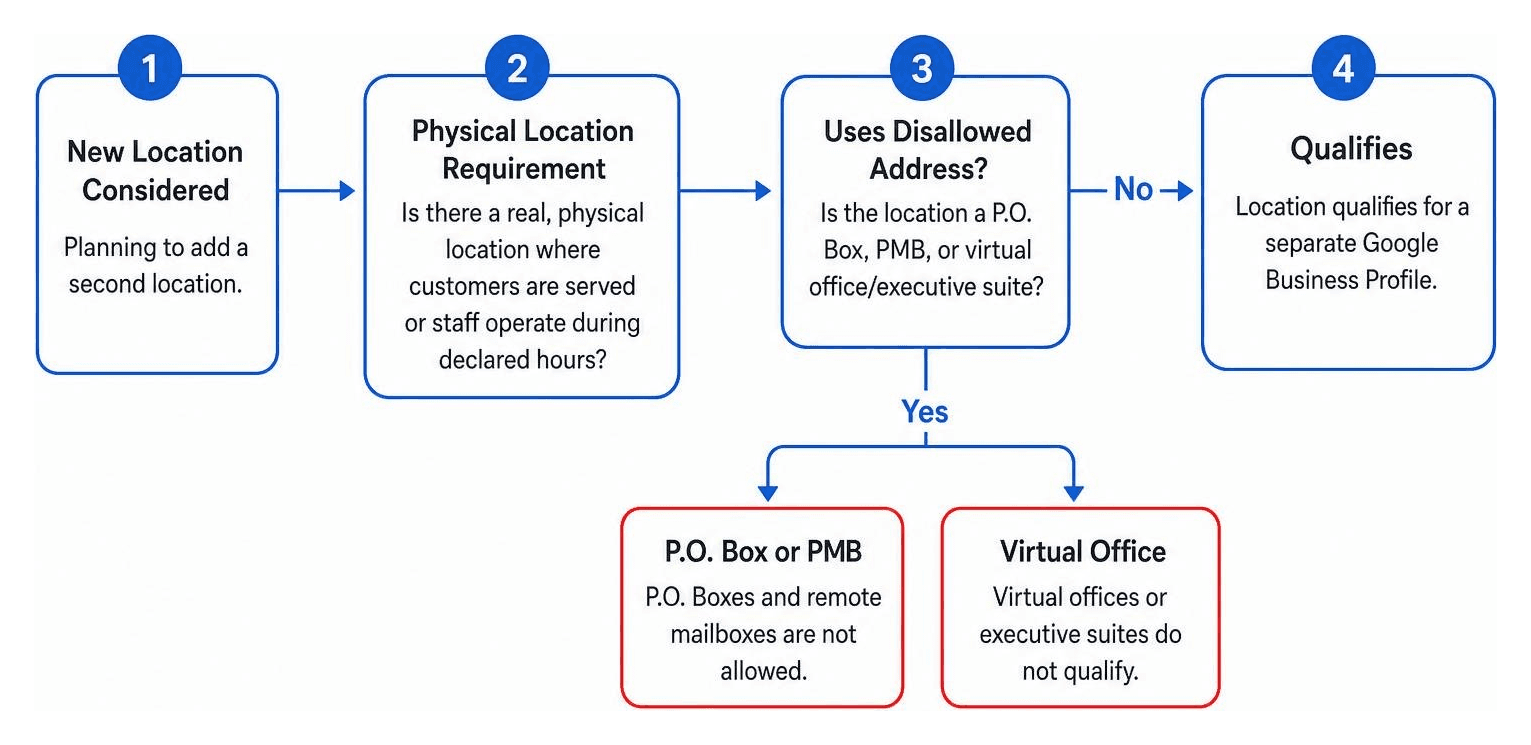
Before learning how to add second location to google my business, you must determine whether your new location actually qualifies for a listing under Google's strict guidelines.
Google requires every separate profile to correspond to a real, physical location where customers are served or where dedicated staff operates during declared hours. If you want to dive deeper into the basics of physical listings, read our guide on How to Add a Second Address to Google My Business.
To qualify for a secondary profile, your physical location must not use:
P.O. Boxes or Remote Mailboxes: Using a P.O. Box or PMB (Private Mailbox) at a postal service store is strictly prohibited.
Virtual Offices or Executive Suites: Renting a virtual address simply to receive mail or forward calls does not count as a physical business presence.
Unstaffed Shared Offices: Shared desks or coworking spaces only qualify if the office maintains clear permanent signage, is staffed by your own team during regular business hours, and accepts walk-in customers.
Brick-and-Mortar Storefronts vs Service Area Businesses
Understanding the distinction between a physical storefront and a Service Area Business (SAB) is essential. If you want a refresher on the foundational benefits of Google profiles, check out What is a Google Company Listing and Why Does Your Business Need One.
Brick-and-Mortar Storefronts: These are physical offices or retail locations where customers walk in during normal business hours (e.g., a bakery, law firm office, or dental practice). These locations must display their address publicly and require their own distinct profile.
Service Area Businesses (SABs): These are businesses that travel to clients or deliver goods directly to them (e.g., plumbers, mobile detailers, or roofers). SABs should maintain a single primary profile with their physical address hidden from the map, using service area settings instead of opening fake profiles in surrounding towns.
Google Rules to Add Second Location to Google My Business Profiles
Google applies zero tolerance to fake listings. If you attempt to add second location to google my business without fulfilling Google's core criteria, both your new profile and your existing listing risk suspension.
To maintain compliance, ensure your second physical location has:
Permanent Exterior Signage: The business name must be clearly visible on exterior signage (not temporary banners or printed paper taped to a door).
Dedicated On-Site Personnel: The location must be staffed by your employees during the hours listed on your profile.
A Distinct Profile: You cannot edit an existing profile to include two addresses. Each physical storefront requires a completely separate profile setup.
Step-by-Step Guide: How to Add a Second Location Profile
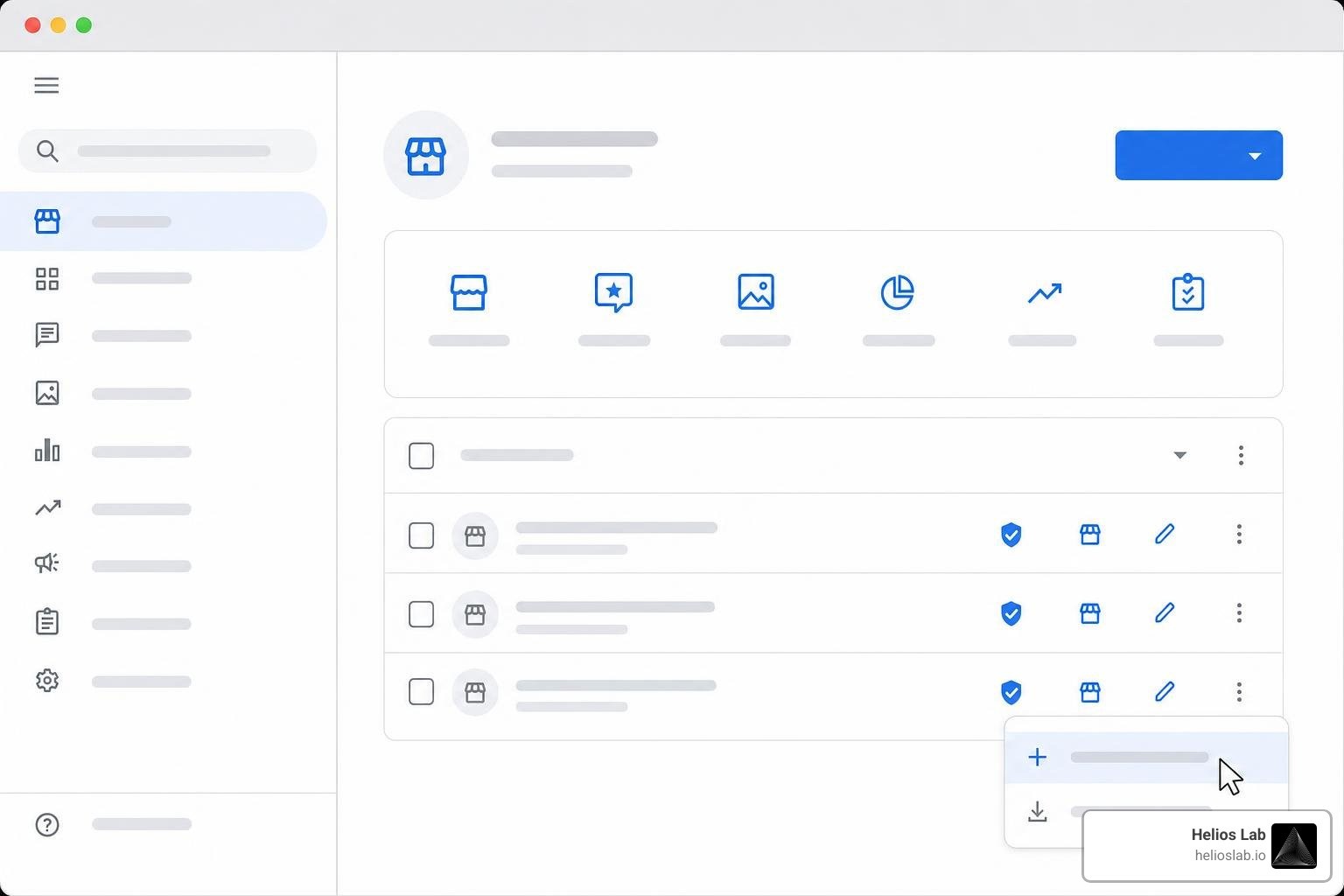
Once you have confirmed that your new storefront meets all qualification rules, you can set up your second listing.
Creating a New Profile for Your Second Address
Follow these step-by-step instructions to create your new profile:
Sign In: Go to Google Business Profile Manager using the primary account associated with your existing business.
Add Business: Click the Add business drop-down menu and select Add single business.
Enter Business Name: Enter your official business name. Ensure the name matches your original profile exactly without adding promotional phrases or local keywords (e.g., use "Apex Law Firm", not "Apex Law Firm - Best Injury Lawyers in Southside").
Choose Business Category: Select the precise primary category that matches your services.
Add Physical Address: Enter the precise physical street address for the new location. Google will check if this address overlaps with existing listings.
Set Phone Number & Website: Provide a dedicated local phone number with a local area code for the new office, along with a link to your website's location-specific landing page.
Complete Verification: Complete the identity verification process requested by Google.
Verification methods vary depending on your industry and account history:
Video Verification: You may be asked to record a continuous video showing exterior street signs, permanent business signage, operating equipment, and proof of management access (like unlocking the front door).
Postcard Verification: Google mails a physical postcard with a 5-digit verification code to the address. Delivery typically takes 5 to 7 business days.
Phone or Email Verification: Select verified, established businesses may receive immediate verification via SMS, phone call, or corporate email.
Setting Up Service Areas Without Adding a Second Physical Address
If you are expanding your service reach without opening a staffed physical office, do not create a second physical address. Instead, update your existing profile:
Log in to your Google Business Profile dashboard.
Click Edit profile and navigate to the Location tab.
Toggle Show business address to customers to Off if you operate entirely out of a home office or non-customer-facing site.
Click on Service area and add up to 20 specific service regions (cities, counties, or postal codes).
Managing Multiple Profiles with Google Business Profile Location Groups
As your business footprint expands, managing multiple accounts individually becomes inefficient. Google provides Location Groups (formerly Business Groups) within the Business Profile Manager to streamline administration.
Feature | Individual Profile Management | Location Group Management |
|---|---|---|
User Access | Must invite users profile by profile | Grant team permissions across all locations at once |
Bulk Verification | Verify each listing manually | Request bulk verification (for 10+ eligible locations) |
Organization | Scattered profile dashboard | Clean, centralized dashboard grouped by brand |
Agency Access | Requires shared logins or separate invites | Easy assignment via unique Business Group ID |
Creating and Transferring Profiles to Business Groups
To set up a Location Group for your business:
Open Business Profile Manager.
Click the Businesses tab in the left menu.
Click Create group in the upper right corner and enter your group name.
To transfer existing listings into the new group, select the check boxes next to the target profiles, click Actions, and select Transfer Location.
Choose your newly created Business Group from the list and confirm the transfer.
Scaling Call Handling and Lead Capture Across Locations
Expanding to multiple business locations creates higher lead volume, making call management essential for converting local traffic into paying clients.
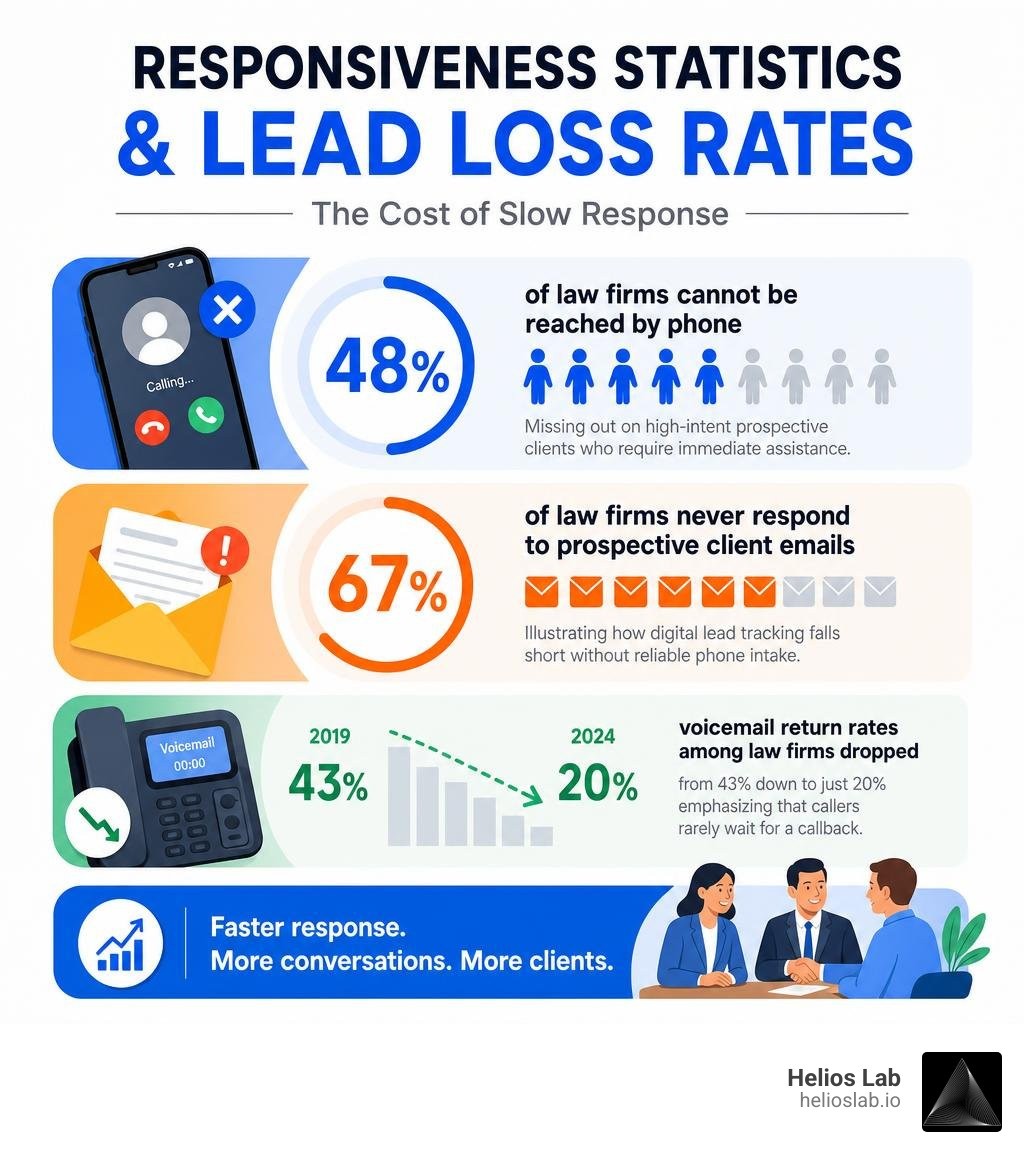
Industry studies highlight how operational friction impacts growth when businesses scale:
48% of law firms cannot be reached by phone, missing out on high-intent prospective clients who require immediate assistance.
67% of law firms never respond to prospective client emails, illustrating how digital lead tracking falls short without reliable phone intake.
Between 2019 and 2024, voicemail return rates among law firms dropped from 43% down to just 20%, emphasizing that callers rarely wait for a callback.
When you add second location to google my business, ensure your call infrastructure scales alongside your listings so that incoming inquiries are answered live on the first ring.
Best Practices to Avoid Suspension When You Add Second Location to Google My Business
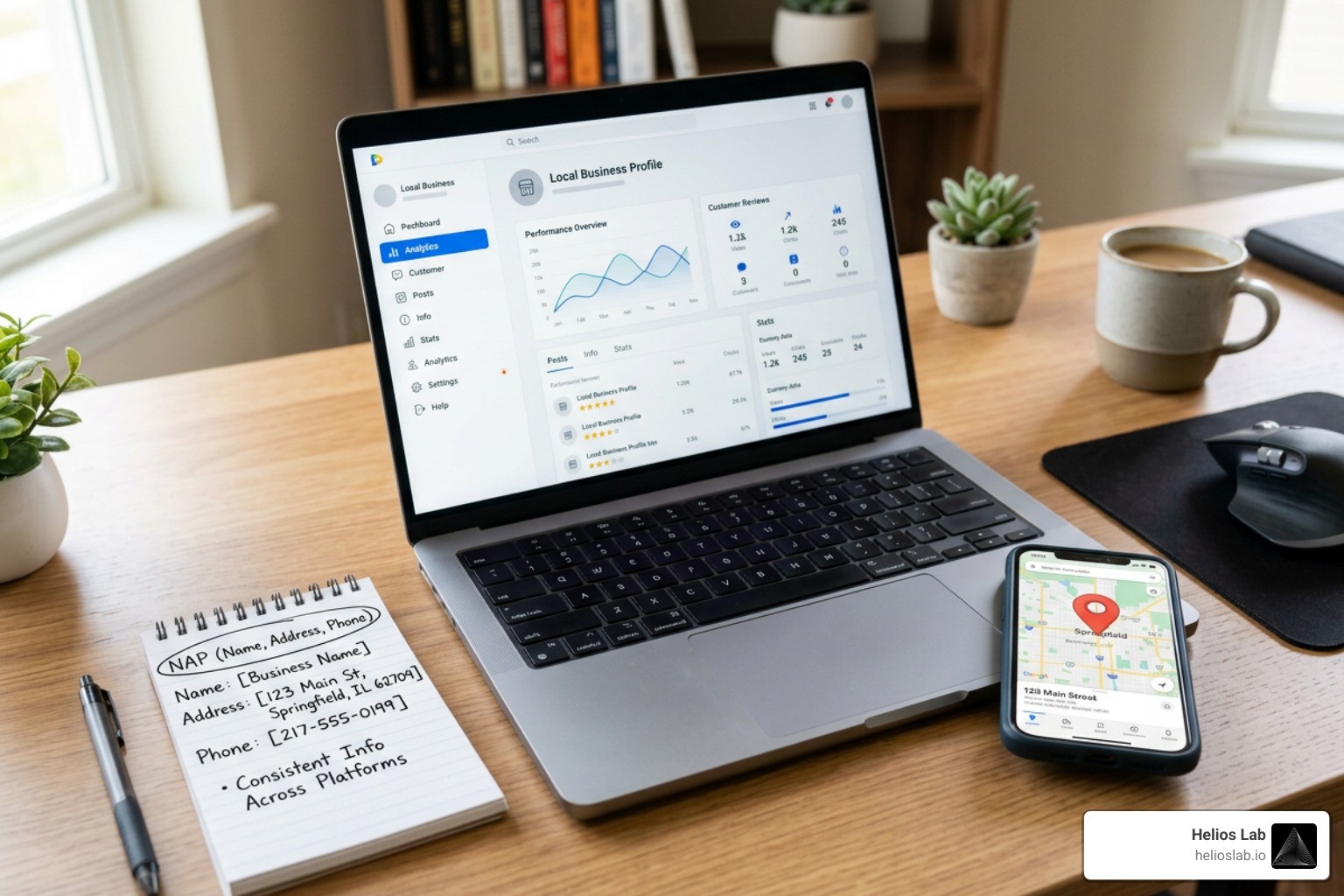
Getting a second profile live is only half the battle; maintaining compliance keeps your profiles active and ranking. Learn more about budgeting for these campaigns in our breakdown on How Much Does Local SEO Cost for Small Businesses.
Maintaining Strict NAP Consistency and Phone Answering
NAP consistency (Name, Address, Phone Number) across the web reinforces your local credibility with search algorithms.
Name: Keep your business name identical across all directory citations and online assets.
Address: Format street names, suite numbers, and zip codes identically across your website, Google profiles, and social platforms.
Phone Number: Assign a unique local phone number to each profile rather than relying on a shared 800 line. Local area codes signal genuine community presence to both Google and local searchers.
Building localized authority around each profile is equally vital. For insights on off-page strategies, read Do You Need Backlinks for Local SEO? Here’s When They Matter.
Managing Location-Specific Reviews and Content
Treat each Google Business Profile as its own local ecosystem:
Publish Local Google Posts: Share updates, special events, and promotions tailored specifically to the neighborhood served by that location.
Upload Local Visuals: Post high-resolution photos showing the exterior signage, interior layout, and real team members working at that specific branch.
Manage Location Reviews: Encourage customers to leave reviews on the specific profile for the branch they visited, and ensure your team responds to every review promptly.
Frequently Asked Questions About Adding Locations
Can I add two addresses under a single Google Business Profile?
No. Google Business Profiles are built around a single geographic location. If your business operates out of two distinct, staffed storefronts, you must create and verify a separate Google Business Profile for each address.
How long does postcard or video verification take for a new location?
Video verifications are often reviewed within 24 to 48 hours. If Google requires postcard verification, physical delivery typically takes 5 to 7 business days. Avoid editing your profile name, category, or address while waiting for a verification code, as doing so can invalidate the request.
What happens if I use a virtual office address for my second location?
Using a virtual office address, mailing desk, or P.O. Box violates Google’s terms of service. Google flags non-qualifying business addresses using postal database cross-referencing and street-level verification. Profiles found using virtual offices risk immediate suspension, which can cascade and harm your primary business listing.
Maximize Your Multi-Location Local SEO with Helios Lab
Expanding your physical presence requires a reliable search strategy. At Helios Lab, we specialize in helping scaling companies dominate local search and capture market share across every city they serve.
Our Local SEO service optimizes your Google Business Profiles, audits and manages local citations, builds review capture workflows, and fixes NAP inconsistencies across the web. We operate on a clear, flat monthly fee model backed by transparent reporting that ties ranking improvements directly to phone calls and real customer conversions.
For businesses looking to build visibility beyond local map packs, our SEO Authority Content service targets valuable commercial queries. We produce content designed to rank at the top of Google search results and earn citations in AI search engines, compounding your search authority over time.
Ready to scale your multi-location visibility and turn local searches into revenue? Boost your local search visibility with Helios Lab today.